
Get Start
The UI Editor is a powerful built-in visual editor provided by ldlib. You can use it to easily design your UI, use it in your own mods, or use it through Java / KubeJS.
1. Get Start
How to open the UI Editor
In general, you can open it by command/ldlib ui_editor, which will use ./minecraft/ldlib/.. as its workspace.

Main Screen

- Menu: New/Save/Open UI projects. You can also import/export
Resourceshere. - Configurator: Basically all the setup happens here.
- Resources: available resources, e.g.
color,texture,lang entries.
Create a new project
When you first use it, click it to create an empty UI project. (If you are making UI for MBD, select the MBD project)

No surprise, you'll see the follow case.

- ToolBox: Contains all the available UI widgets(components).
- Root Widget: The whole project has one and only one root widget, which is created by the system and you cannot delete it.
2. Basic

- red frame are selected widgets.
- blue frame is the widget that mouse is hovering over it.
Multi-Select
Press ctrl to multi-select / cancle-select widget.
Drag Selected Widgets

- Hold down
alt+left-clicked, if you see the arrows (all directions) then you can drag it. - Anyway, you could also modify position by a configurator.
Scale Selected Widgets

- Hold down
alt+right-clicked, if you see the arrows (right bottom) then you can scale it. - Anyway, you could also modify size by a configurator.
Add a Widget
All widgets (except the Root) need to be added to a father (parent) widget that accepts it, and we call such father (parent) widget as Group Type widget (e.g. Group, Tab Group, Scrollable Group).

- You can find all available widgets in the toolbox.
- Drag a widget into a
Group Typewidget. - Rendering a green frame if such widget can accept it.
Move widget from one Groug to another Group
Sometimes you may want to modify the parent control.
- You can do this by the menu (right-clicking page) and cut/copy to the selected parent widget.
- A better way is to press the
shiftand move it into the new Group.
 Rendering a green frame if such widget can accept it.
Adjust Children Widgets Order
In general, all the Group widgets have a children tab in its configurator, showing all children, you can adjust their order by dragging.

Menu
Right-click the page to open the menu.
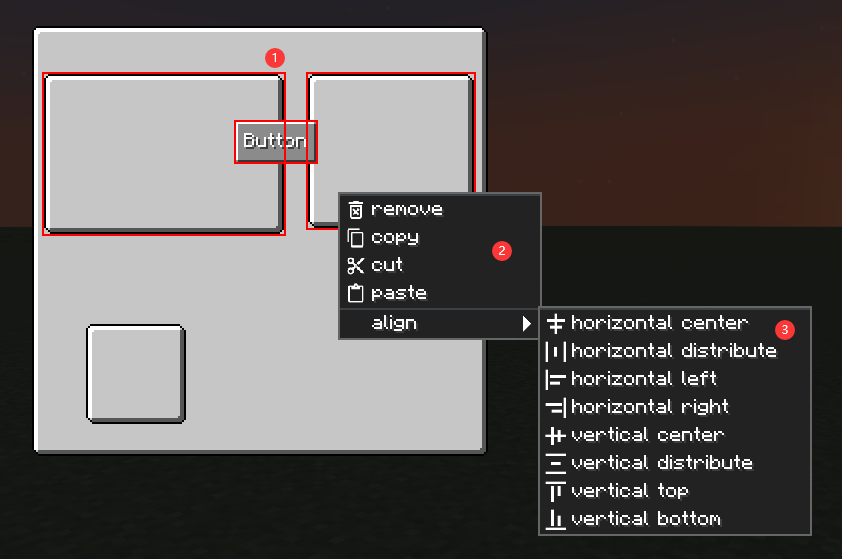
- All operations will be performed on selected widgets.
- Basic operations
- Align: availabe when you select multi widgets.