Resource UI
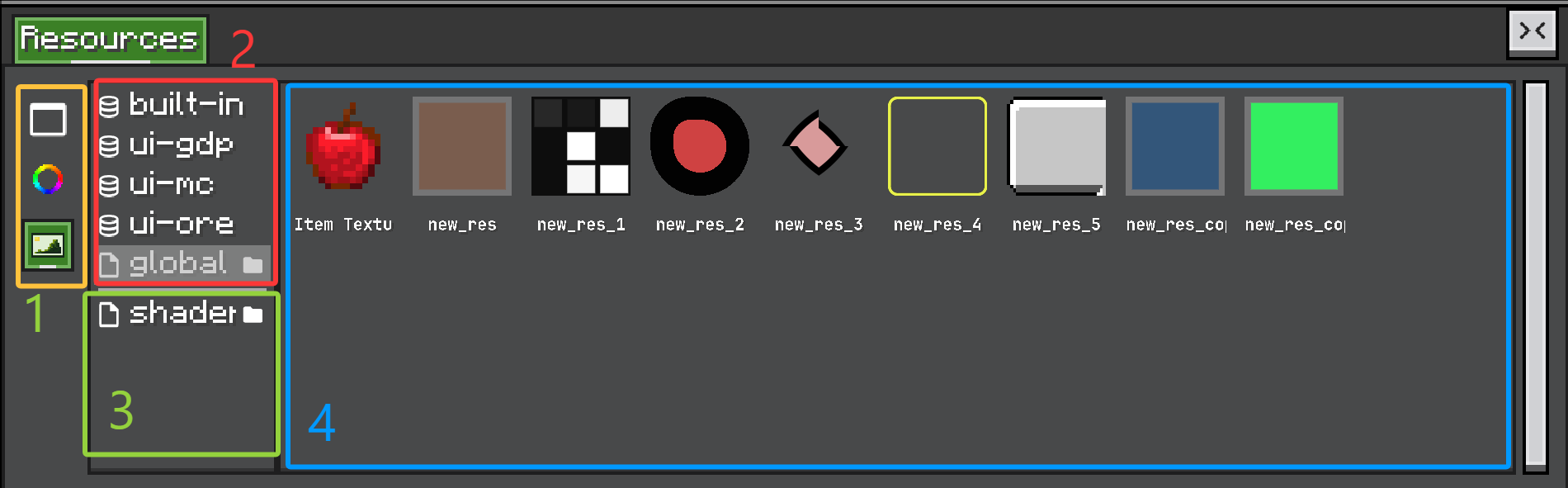
The resource panel has four main areas:
-
Resource type tabs
Each tab switches to a differentResource<?>type, such as textures, colors, UI templates, or your own project resource type. -
Built-in resource providers
These are providers registered by code. Built-in resources are usually examples, defaults, or internal assets. They are normally read-only. -
Additional resource providers
These are extra providers added by users or projects, such as file-backed folders. Use this area for editable user resources. -
Resource contents
This is theResourceProviderContainercontent area. It displays the resources from the selected provider and handles selection, editing, dragging, copying, renaming, and removal.
The resource panel is built from three layers.
ResourceView is the built-in editor view. It creates one vertical tab per Resource<?> type and stores the selected ResourceInstance.
ResourceContainer<T> is the content for one resource type. The left side lists providers. The right side shows the selected provider's resources.
ResourceProviderContainer<T> renders the resources from one provider.
Provider UI
Each provider supplies a toggle via IResourceProvider.createProviderToggle(). File providers add an open-folder button. Built-in providers use a read-only resource icon.
Right-clicking the provider list can create custom providers for registered ResourceProviderTypes that support custom instances.
Resource UI
ResourceProviderContainer supports:
- grid and list display,
- selectable items,
- double-click edit,
- drag payloads,
- copy path,
- add resource,
- copy resource,
- rename resource,
- remove resource,
- provider-specific context menu entries.
Use these hooks to customize behavior:
container.setAddDefault(() -> new ShopEntry());
container.setOnEdit((view, path) -> openShopEntryEditor(path));
container.setOnMenu((view, menu) -> menu.leaf("shop.validate", this::validate));
container.setOnDragProvider(path -> resourceProvider.getResource(path));
For type-level customization, override:
@Override
public ResourceProviderContainer<ShopEntry> createResourceProviderContainer(IResourceProvider<ShopEntry> provider) {
    return new ResourceProviderContainer<>(provider)
            .setAddDefault(ShopEntry::new)
            .setOnEdit((container, path) -> edit(container, path));
}
Resource edits should usually go through HistoryView, so undo and redo work like other editor actions.
Customize the Display
Use setUiSupplier(...) to render each resource item.
@Override
public ResourceProviderContainer<ShopEntry> createResourceProviderContainer(IResourceProvider<ShopEntry> provider) {
    return super.createResourceProviderContainer(provider)
            .setAddDefault(ShopEntry::new)
            .setUiSupplier(path -> {
                var entry = provider.getResource(path);
                return new UIElement()
                        .layout(layout -> {
                            layout.widthPercent(100);
                            layout.heightPercent(100);
                        })
                        .addChild(new Label().setText(entry == null ? "missing" : entry.displayName()));
            });
}
ColorsResource uses this to draw a color rectangle. TexturesResource uses it to draw the texture itself.
Customize Editing
Use setOnEdit(...) for double-click editing or context-menu edit commands.
.setOnEdit((container, path) -> {
    var entry = provider.getResource(path);
    if (entry == null) return;

    container.getEditor().inspectorView.inspect(entry, configurator -> {
        container.markResourceDirty(path);
    });
})
For edits that replace the resource value, push a history action:
container.getEditor().historyView.pushHistory(
        Component.translatable("shop.edit_entry"),
        EditAction.of(
                () -> {
                    provider.addResource(path, newEntry);
                    container.reloadSpecificResource(path);
                },
                () -> {
                    provider.addResource(path, oldEntry);
                    container.reloadSpecificResource(path);
                }
        )
);
Customize Dragging
Use setOnDragProvider(...) when dragging a resource should provide a different object than the raw resource value.
TexturesResource uses this pattern to drag a UIResourceTexture reference instead of directly dragging the texture object.
Customize the Context Menu
Use setOnMenu(...) to add resource-specific commands.
.setOnMenu((container, menu) -> {
    if (container.getSelected() != null) {
        menu.branch("shop.copy", branch -> {
            branch.leaf("shop.copy_path", () ->
                    ClipboardManager.INSTANCE.copyDirect(container.getSelected().getPathWithType()));
            branch.leaf("shop.copy_id", () ->
                    ClipboardManager.INSTANCE.copyDirect(container.getSelected().getResourceName()));
        });
    }
})
Keep resource UI behavior close to the Resource<T> subclass when it is part of the resource type itself. Use provider hooks when the behavior depends on where the resource comes from.