
Machine Effects (Photon)
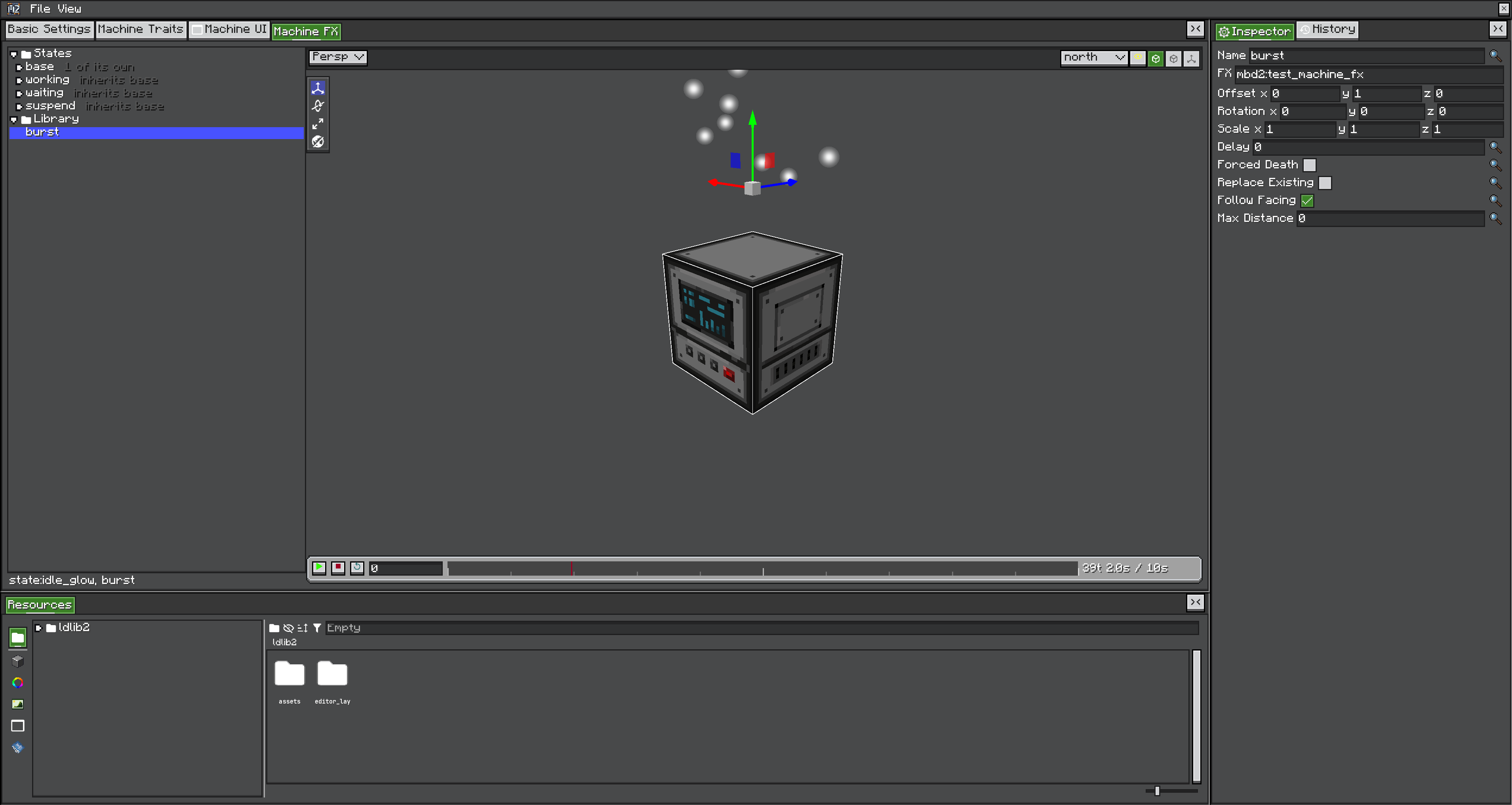
Since 21.1.1Requires Photon 2.2.5A machine can play Photon particle effects: continuously while it is in a state, or fired at a moment by a blueprint. Effects are authored in the Machine FX view of a machine project, previewed there, and referenced by name.
Photon is optional
MachineFXConfig holds a ResourceLocation and a few numbers — no Photon types. A definition authored with Photon installed loads unchanged on a client or server without it; the effects simply never play. The editor's fx picker still exists and finds nothing.
Two lists
| List | Lives on | Starts and stops | Use for |
|---|---|---|---|
| State effects | A machine state | Automatically, with the state | "What this machine looks like while it is working" |
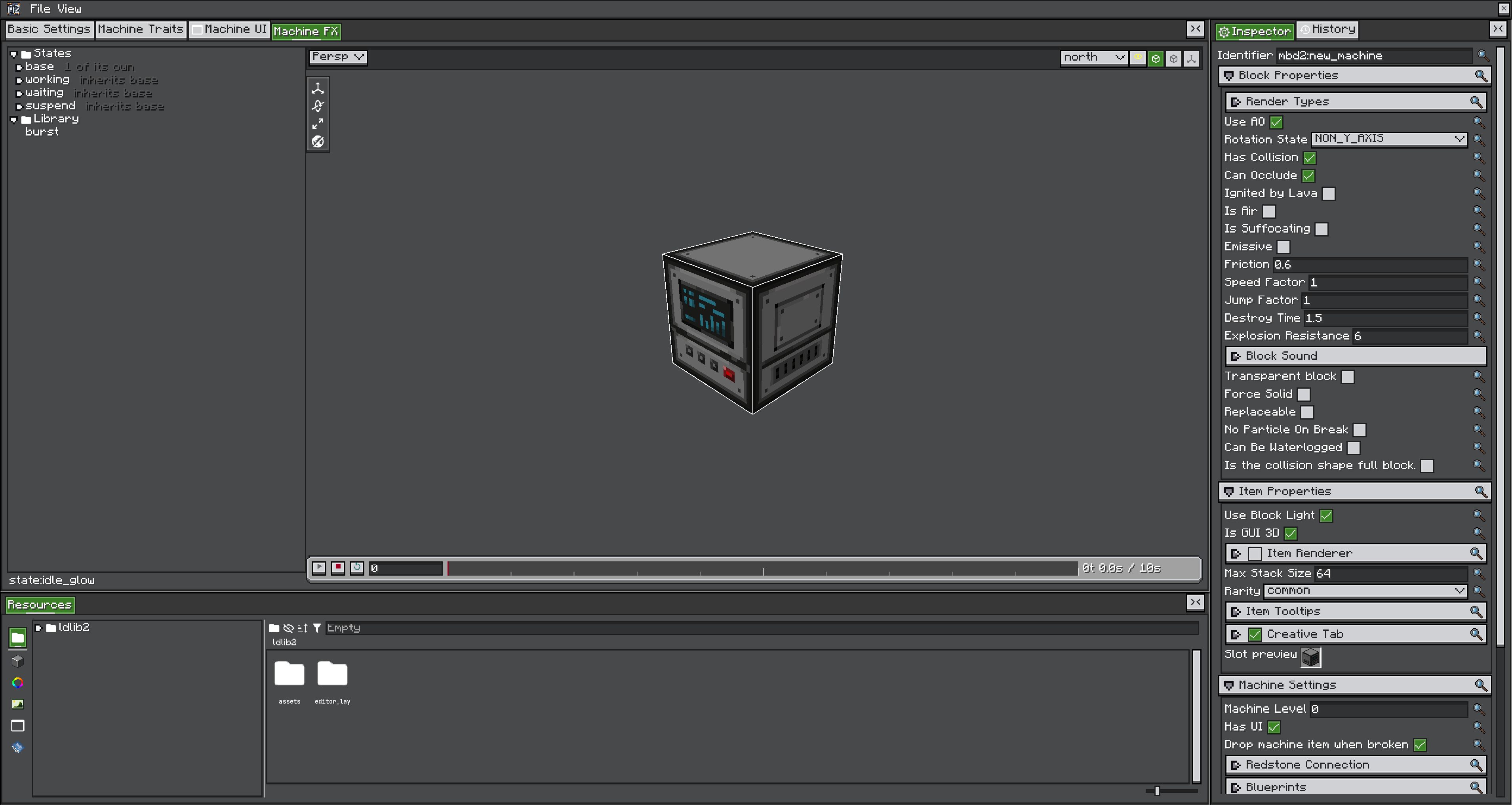
| FX library | Machine Settings | On demand, by name | A moment: a craft completing, an explosion, a burst |
State effects follow the same inheritance rule as renderer, shape and machineSound: the toggle disabled means inherit the parent state's list, not no effects. A state that genuinely wants silence enables the toggle and leaves the list empty.
State effects are also the only kind a player who arrives later will see. playMachineFX reaches players tracking the chunk now.
Configuring one effect
| Field | Default | Meaning |
|---|---|---|
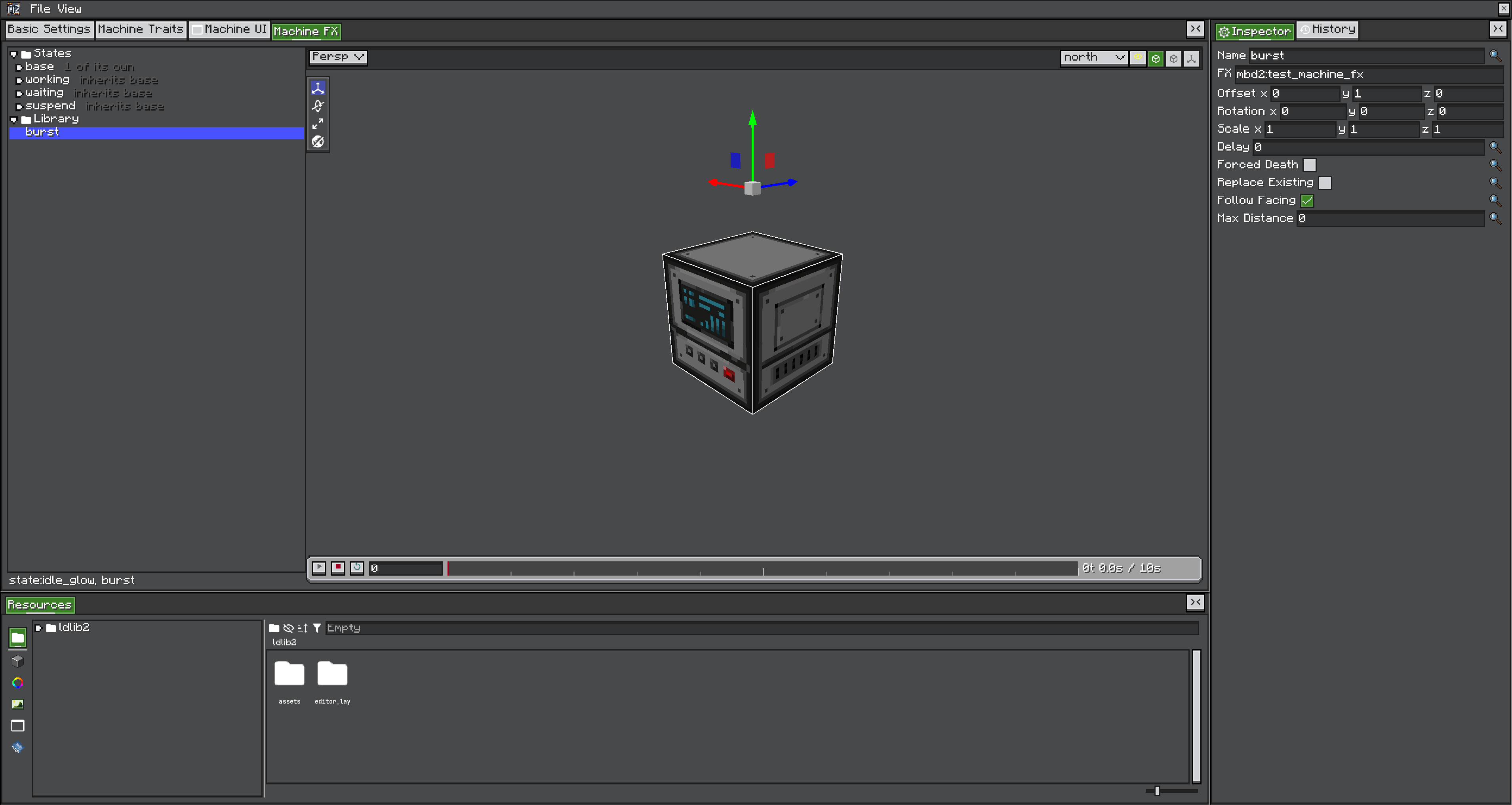
Name | fx | The identifier it plays under. Also the name a blueprint fires it by |
FX | photon:example | The Photon effect id, namespace:path — no fx/ prefix, no .fx suffix |
Offset | 0,0,0 | From the centre of the machine's block |
Rotation | 0,0,0 | Degrees |
Scale | 1,1,1 | |
Delay | 0 | Ticks before it starts |
Forced Death | off | Drop remaining particles immediately on stop, instead of letting them drain |
Replace Existing | off | Whether starting it again replaces a running effect with the same identifier. Off makes a per-tick "play" call idempotent |
Follow Facing | on | Rotate offset and rotation by the machine's front facing |
Max Distance | 64 | How far from the player the effect may start |
Max Distance is a start gate, not a cull: block entities tick for the whole loaded chunk radius, not render distance, so without it a machine coming into range spawns a particle system nobody is near. An effect already running keeps running until its state ends or the chunk unloads.
Previewing
The centre pane plays the selected effect on the machine model, with a transport and a scrub bar.
Firing one from a blueprint
The mbd2/machine/fx group has four nodes:
| Node | Does |
|---|---|
| Play Machine FX | Start a named entry from the machine's FX library |
| Stop Machine FX | Stop whatever is playing under an identifier |
| Emit Photon FX | Start an effect described inline — id, offset, rotation, scale, delay |
| Kill Photon FX | Stop an inline effect |
Prefer Play Machine FX: a library entry is authorable and previewable in the editor. Use Emit Photon FX only when the blueprint computes the effect rather than picking one.
All four are relayed from the server to tracking clients, so a blueprint on a server event can fire them.
Identifiers are one namespace
playMachineFX and emitPhotonFx share the identifier space, and state effects reserve the state: prefix. Starting a second effect under an identifier already in use is either refused or replaces it, per Replace Existing — so calling Play Machine FX every tick while a state is active is a no-op, not a particle storm.
Checklist
- Author or install the Photon effect and note its id.
- Add it to a state's list for a continuous effect, or to the machine's FX library for a fired one.
- Set
Follow Facingunless the effect is meant to stay world-aligned. - Preview it, scrub to the tick you care about, and check the offset against the model.
- Lower
Max Distancefor anything dense. - Test on a client without Photon installed: the machine must still load.