
Distribution and FX Packs
FX Packs since 2.2.0Photon can export a lightweight .fx definition or a self-contained .fxpack. Choose based on where the referenced resources will come from.
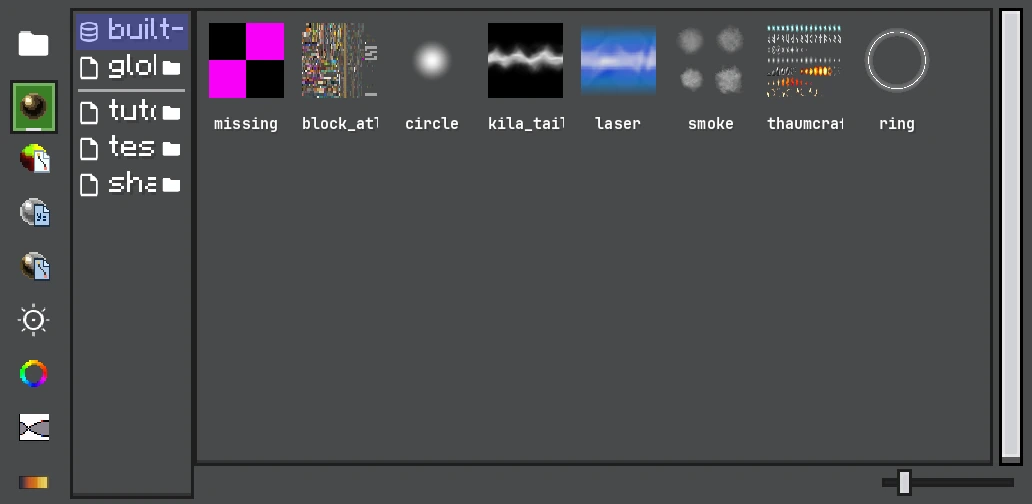
FX Pack dependency collection starts from the resources referenced by the project, including materials, graphs, meshes, and textures.
Formats
| Format | Contains | Use it when |
|---|---|---|
.fx | FX object tree and Timeline; resources and the sources of FX instances remain references | The target mod/resource pack already ships every dependency. |
.fxpack | One or more .fx files plus collected materials, graphs, meshes, models (.obj, .glb, .gltf), textures, shaders, and the sources its FX instances place | Sharing an effect between installations or shipping a standalone effect pack. |
A plain .fx that contains FX instances needs their sources at runtime. Each source must be loadable by its id from a mod, a resource pack, or an .fxpack. An .fxpack export packs the sources for you, at any nesting depth, except the ones the game or a mod already ships. See FX Instances.
Runtime Resource Layout
assets/<namespace>/fx/<path>.fx
assets/<namespace>/textures/...
assets/<namespace>/models/...
assets/<namespace>/shaders/...
assets/ldlib2/resources/<provider>/<resource>.<type>.nbt
FXHelper.getFX(ResourceLocation.parse("example:fire")) resolves assets/example/fx/fire.fx.
Inside an .fxpack, library resources (materials, shader graphs, function graphs, meshes) are stored once by content under assets/photon_fx/<kind>/<hash>.<kind>.nbt, and the packed effects point at them. Raw assets such as textures, models, and shaders keep their original locations.
Export an FX Pack
Choose File → Export → Export to FXPack..., select or create a .fxpack, and enter the effect name (FX Name in Pack). The pack filename becomes its namespace and the entered name becomes its path.
Exporting another effect into the same pack is additive. Shared resources are content-addressed and stored once.
Live Updates
Changed 2.2.9Since 2.2.9, exporting into a pack that the game has already loaded rewrites it in place. The game plays the new version right away, and the editor confirms with "It plays in game right away." Removing an effect from a loaded pack takes effect right away too. Open projects whose FX instances place an effect from the pack follow the new version.
Older versions held the mounted pack file open and asked you to reload or restart before overwriting it. That advice no longer applies.
The editor tells you when the export cannot play right away:
| Message | Meaning |
|---|---|
| "The pack is not loaded yet. Reload resources now?" | The pack file is new to the game. Choose Reload Resources to load it. |
| "But %s provides the same id with a higher priority, so the game plays that one." | Another pack with a higher priority has an effect with the same id. |
| "The game only loads .fxpack files placed directly in photon/fxpacks, so it will not load this one." | The pack is saved somewhere else, or in a subfolder. |
| "The pack file is in use by another program. Close it and try again." | Another program, such as an archive tool, holds the file. |
Manage an FX Pack
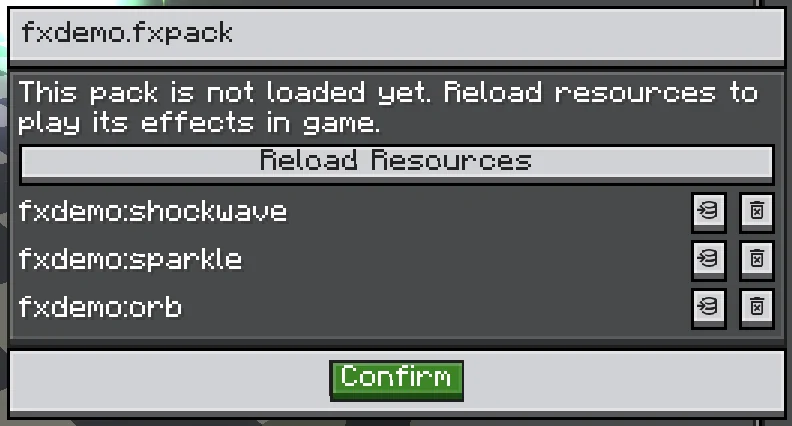
Changed 2.2.9Choose File → Manage FXPack... and pick a pack. The dialog lists the pack's effects by id. Each row has two buttons:
| Button | Does |
|---|---|
| Convert to Project | Converts the effect into an editable project. See Convert Effects into Projects. |
| Remove from Pack | Asks "Remove %s from the pack? Resources only it uses are deleted with it.", then removes the effect and the resources no remaining effect references. |
If the pack is not loaded yet, the dialog says "This pack is not loaded yet. Reload resources to play its effects in game." and offers Reload Resources.
Since 2.2.9, Manage FXPack... is in the editor's File menu, so it works without an open project. Convert to Project and the removal confirmation are new in 2.2.9.
Convert Effects into Projects
Since 2.2.9You can turn an exported effect back into an editable .fxproj:
- File → Convert .fx to Project... for a loose
.fxfile. It works without an open project. - Convert to Project in Manage FXPack... for an effect inside a pack. It reads the pack file itself, loaded or not.
- Double-clicking an
.fxin the Asset Browser, or Open Source on an FX instance.
Each way asks where to save the project (Save the Converted Project). If the file exists, it asks before replacing it. The converted project then opens.
The converter handles references this way:
| Reference | Result |
|---|---|
Packed library resources (assets/photon_fx/...) | Copied into <project>_resources/ next to the project, and the references point at the copies. The project no longer depends on the pack, and editing the copies does not change the pack. |
| Raw assets (textures, models, shaders) | Stay where they are. |
| References that cannot be found | Kept as they are. The editor reports "%s referenced resources could not be found, so their references were kept as they are (see the log)." |
Mounting
Place packs in:
<gameDir>/photon/fxpacks/Only .fxpack files placed directly in this folder are loaded. They are exposed as client resource packs on the next resource reload. Effects inside then appear in FXHelper.listAllFX() and can be played like any other resource effect.
Missing Dependency Checklist
When an exported effect is invisible or magenta:
- Confirm the
.fxid and namespace. - Check the log for failed material, graph, mesh, texture, or shader paths.
- Ensure Minecraft resource paths are lowercase and contain no spaces.
- If the effect contains FX instances, check that every source id loads. An instance with a missing source places nothing.
- Reload resources and clear the FX definition cache.
- Prefer
.fxpackwhen manually collecting the dependency graph is error-prone.
Shipping in a Mod
Copy the pack's assets/ content into src/main/resources/assets/, or ship the .fxpack as an optional user-installed pack. Do not ship .fxproj; it is an authoring file, not a runtime resource.