Kila Material
Since 2.2.8Kila Material is Photon's built-in all-in-one particle material. Instead of building a graph, you switch modules on: flipbooks, extra texture layers, masks, dissolve, UV and screen distortion, colour ramps, soft edges, fresnel, lighting, fog balls and ground decals. Each set of enabled modules compiles to its own shader variant, so a module you leave off costs nothing.
When to Use It
| Use | When |
|---|---|
| Texture or Sprite Material | One texture on ordinary particles, nothing animated in the shader. |
| Kila Material | A common VFX look: scrolling noise, flipbooks, dissolve, distortion, soft edges, rims, decals, heat haze. Per-particle values without a graph. |
| Shader Graph Material | Logic Kila has no module for. Start from a Kila look with Export as Shader Graph and continue in the graph. |
Create One
- In Resources → Material, right-click and choose Add a New Resource → Kila Material.
- Assign it to a renderer's material slot. A new Kila Material has Main Texture on, Alpha blend, and its own render state; the slot's Render State is From Material by default, so it follows the material.
- Click Browse Presets... to start from a ready-made effect, or add modules yourself.
The built-in material library has no Kila materials. Presets are reached from the inspector.
Convert a Texture Material
Right-click a Texture Material tile and choose Convert to Kila Material. After you confirm, the file is replaced in place: every effect that uses it switches to the Kila Material. The entry appears only for plain Texture Materials (not Block Atlas) in a folder you can edit.
| Texture Material | Becomes |
|---|---|
| Texture | Main Texture, sampled as Minecraft samples it: Pixelated unless the .mcmeta sets blur, Clamp wrap if it sets clamp (otherwise Repeat) |
| Discard Threshold | Alpha Clip |
| HDR Color | Color; with HDR Mode ADDITIVE it becomes Emission instead |
| Pixel Art | Pixelate module |
| Soft Particles | Depth & Contact module (Soft Fade distance and power) |
| Lit by Dynamic Lights | Lit by Dynamic Lights module |
The converted material has Use Slot State on, so each slot keeps the blend, cull and depth it had.
The Inspector
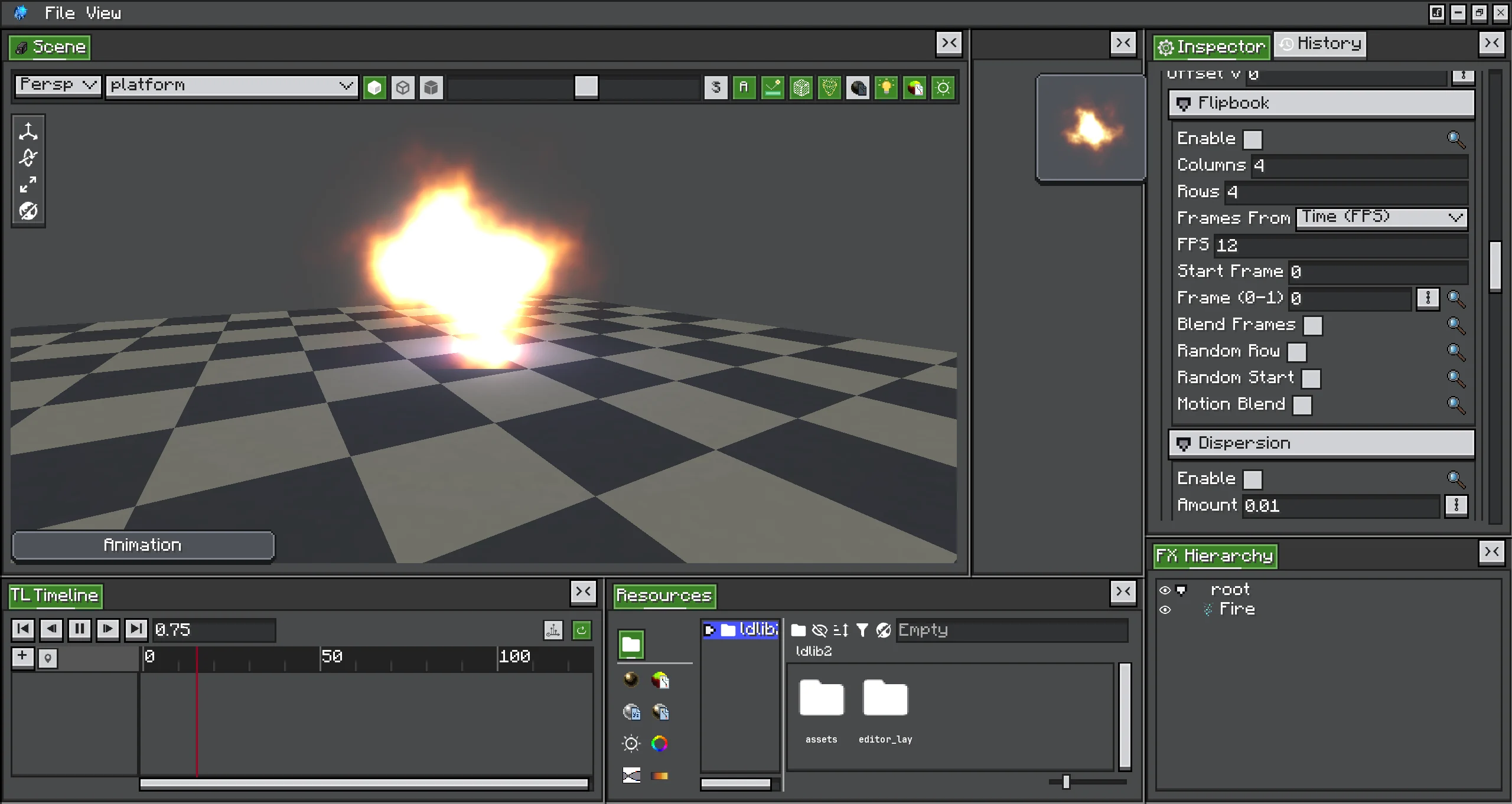
From top to bottom:
- Preview. A live thumbnail. Backdrop switches between checkerboard, black and light. Debug View shows one step on its own (Result, Main, Alpha, Masks, Dissolve, Distortion, Normal, UV); it is not saved. When you scroll the preview out of sight, a small copy floats beside the inspector.
- Browse Presets... opens the preset gallery.
- Render: blend, culling and depth.
- Surface: colour, alpha and how the particle's own colour, light and fog apply.
- One group per enabled module. The toggle in a group's header turns the module off; its settings are kept, also across a save.
- + Add Module... opens the module dialog.
- The status line
Samplers n/12. See Limits.
Render
| Option | Default | Description |
|---|---|---|
| Use Slot State | off | Leave blend, culling and depth to each material slot, as a Texture Material does. On, the rows below except Camera Offset are hidden. |
| Blend | Alpha | Alpha, Additive, Soft Additive, Multiply or Opaque. |
| Additive | 0 | Soft Additive only: 0 blends like Alpha, 1 adds like Additive, values between are both. |
| Double Sided | off | Draw back faces as well. |
| Back First | off | Shown with Double Sided. Draws the back faces, then the front ones, so a closed transparent shield or orb sorts itself. |
| Depth Test | on | Hide the particle behind world geometry. |
| Depth Write | off | Let the particle hide what is drawn after it. |
| Camera Offset | 0 | −8 to 8 blocks. Depth-tests the particle this many blocks closer to the camera without moving it on screen: ground quads stop flickering into block tops, sprites stop cutting into walls. |
A slot whose Render State is From Material uses these settings; see Render State. While Use Slot State is off, Kila also shapes its colour for its own Blend (Soft Additive premultiplies, Multiply fades towards white, Opaque forces alpha 1). To let the slot decide the blend, turn Use Slot State on rather than setting the slot to Custom.
Surface
| Option | Default | Description |
|---|---|---|
| Color | white | HDR colour. An intensity above 1 glows and feeds bloom. |
| Intensity | 1 | Multiplies the colour. Can be driven by particle data. |
| Alpha | 1 | Multiplies the alpha. Can be driven by particle data. |
| Emission | black | Added to the colour everywhere the particle is visible. |
Under More:
| Option | Default | Description |
|---|---|---|
| Vertex Color | Multiply RGBA | How the particle colour (Color over Lifetime and so on) applies: Multiply RGBA, Alpha only, Ignore, RGB only. Use RGB only when the vertex alpha drives something else, such as a dissolve. |
| World Light | on | Darken with the block and sky light at the particle. Turn it off for glowing effects. |
| Fog | on | Apply Minecraft fog. |
| Alpha Clip | 0.01 | Discard fragments less opaque than this. |
| Alpha Power | 1 | Power on the final alpha, masks included. Above 1 tightens soft edges, below 1 widens them. |
| Back Color | white | Multiplies the colour of back faces. Needs Double Sided. |
| Frame Rate | 0 | Steps every animation at this many frames per second, like a hand-drawn effect. 0 is smooth. |
| Boil | 0 | Shown when Frame Rate is above 0. How far the UV jumps every step. |
Modules
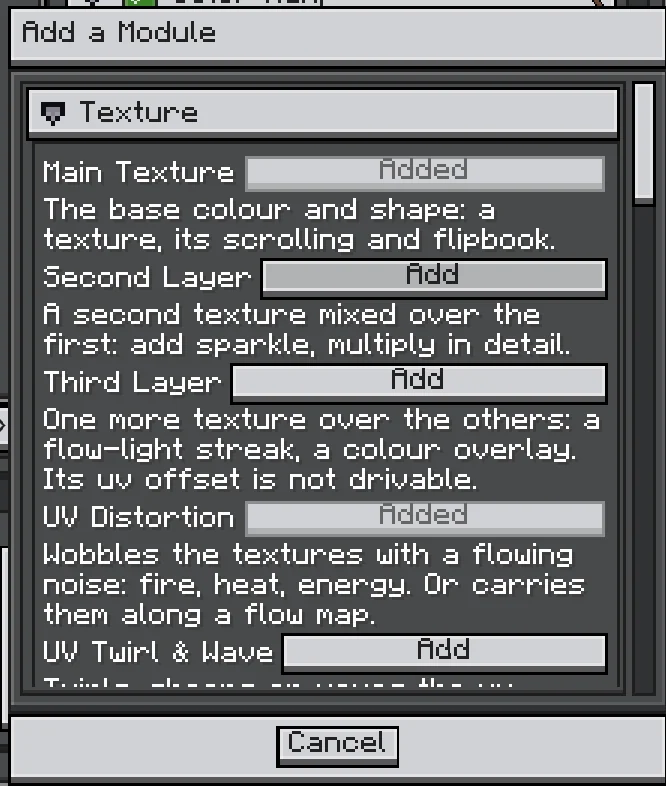
+ Add Module... lists the 21 modules by category, with a description under each. Add turns a module on and opens its group; modules already on show Added. Only Main Texture is on in a new material.
| Category | Module | What it does |
|---|---|---|
| Texture | Main Texture | The base colour and shape: a texture with scroll and a flipbook (Columns, Rows, Frames From Time (FPS) or a Frame driver, Start Frame, Blend Frames, Motion Blend with a motion-vector texture, Random Row, Random Start), plus Dispersion for a chromatic fringe. Leave the emitter's UV Animation off when the flipbook is on. |
| Texture | Second Layer | A second texture mixed over the first by Multiply, Add, Lerp or Screen. |
| Texture | Third Layer | One more layer over the others. Its UV offset cannot be driven. |
| Texture | UV Distortion | Wobbles the textures with a flowing noise (Offset), or carries them along a flow map (Flow Map). Choose which slots it distorts. |
| Texture | UV Twirl & Wave | Twirls, shears, waves or ripples the UV before anything reads it: portals, flags. |
| Texture | Ground Projection | Paints the particle onto the ground behind it as a decal, following steps and slopes. Orientation Ground or Quad, Size, Reach, Fade, Facing Only. |
| Texture | Pixelate | Snaps the UV to a grid for a pixel-art look. |
| Color | Color Ramp | Recolours through a gradient. Input Luma, Red, Alpha, U or V; Mode Replace, Multiply or Replace + Alpha; Offset (bind it to lifetime to cool a flame down). |
| Color | Screen Distortion | Shows the scene behind the particle, pushed by a noise texture or by the surface normal: heat haze, refraction. Strength, Keep Front, Color Fringe, Stack. |
| Color | Color Adjust | Hue Shift, Saturation, Contrast, Brightness, Posterize. |
| Alpha | Mask 1, Mask 2 | Cut the shape with another texture. Mask 2 multiplies with Mask 1. |
| Alpha | Dissolve | Burns the particle away along a noise: Progress, Softness, Edge Width, Edge Color and Edge Gradient, Edge Add (glow) or Replace, and a direction (U, V, Radial or a Texture) with Weight and Reverse. |
| Alpha | Depth & Contact | Soft Fade where the particle meets the scene behind it, and Contact Glow where it touches it (width, blend, falloff, hardness, By Shape, Measure, gradient, pulses, breakup). |
| Alpha | Volume | Turns the quad into a ball of fog that thins towards its edge from any side. Scene Clip thins it where the scene cuts it. |
| Alpha | Camera Fade | Fades out as the camera comes close (Start 0.5, Fade Length 2), so it never covers the screen. |
| Vertex | Vertex Offset | Pushes the vertices by a noise along the Normal or an Axis. Both Ways, Edge Fade. |
| Lighting | Fresnel | Rim Glow, Fade Edges or Fade Centre at grazing angles. Needs a mesh: a billboard always faces the camera. |
| Lighting | Shading | Lights the particle from a direction: Mesh or Sphere normal, bump by Height or Normal Map, Lambert or Six-Way, Key Light, Ambient, Wrap. Dynamic lights follow it. |
| Lighting | Matcap | A lit sphere looked up by the way the surface faces: glass, ice, metal. On billboards, pair it with Shading. |
| Lighting | Lit by Dynamic Lights | Lit by Photon's dynamic lights. |
Texture Slots
Every texture in a module is a slot with the same controls. Click the thumbnail to open Pick a Texture, with Procedural noise, Recent, Built-in and Particle textures sections and a Browse File... button. You can also drop a .png on the slot. Right-click the slot for Pick a texture..., Browse File... and Reset to default.
| Row | Description |
|---|---|
| Channels | Colour slots: RGBA, Red as Alpha, Alpha Only, Luma as Alpha. |
| Channel | Mask and noise slots: R, G, B, A or Luminance. |
| Density, Motion | Procedural noise (Simple, Gradient, Voronoi) only. Motion is how fast Voronoi cells drift. A procedural slot uses no sampler. |
| Tiling, Offset, Scroll | Scroll is in UV per second. |
| Details → UV From | Mesh, Screen, World XZ (ground), World XY, World ZY. World planes tile once per block and line up across particles. |
| Details → Rotation, Spin Speed | Degrees about the UV centre; degrees per second. |
| Details → Wrap U, Wrap V | Repeat, Clamp, Mirror, Clip. Clip is Clamp and transparent outside the texture, so a slash slides off instead of smearing. |
| Details → Pixelated | Nearest sampling for file textures. |
| Details → Polar | U becomes the distance from Center and V the angle around it; Radius and Repeats scale them. Rings, vortexes, radial streaks. |
Drive Values with Particle Data
Many number rows have a link button, Drive with particle data. A bound row shows Driven By and Scale, and the final value is value + Scale × source.
| Source | Reads |
|---|---|
| Constant | Nothing: choosing it unbinds the row. |
| Vertex Color R, G, B, A | The particle colour, such as Color over Lifetime. |
| Particle Lifetime | Normalized age, 0 to 1. |
| Particle Random | The particle's random number. |
| Trail Point Life | The life of a trail point. |
| Trail Point Position | The position along the trail. |
| Custom Data | Stream 0–3 and Channel 0–3 (x, y, z, w) of the emitter's Custom Data. |
For example, bind Dissolve Progress to Vertex Color A with Scale −1 and value 1: the particle dissolves as its Color over Lifetime alpha drops.
A source the draw cannot provide reads 0, so the row falls back to its value. When that happens, the emitter inspector shows a Material needs data row at the top with a Fix button:
- A Custom Data driver reads a stream the emitter does not define. Fix enables Additional GPU Data and adds the stream or its missing channels.
- Trails, beams and Ara trails carry particle data only with GPU instancing. Fix turns instancing on.
A Particle Emitter carries particle data with and without GPU instancing. See Additional GPU Data.
Presets
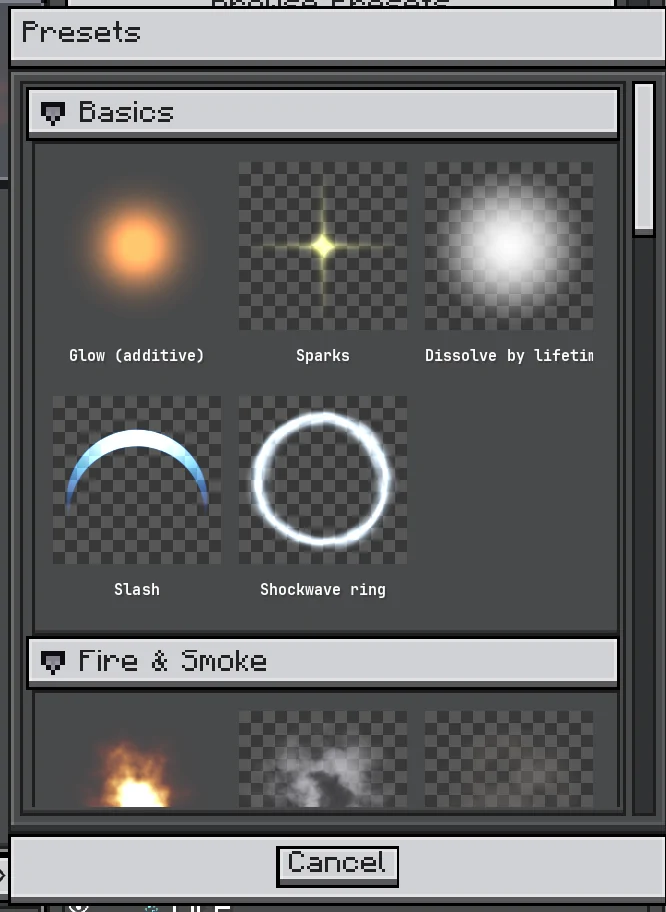
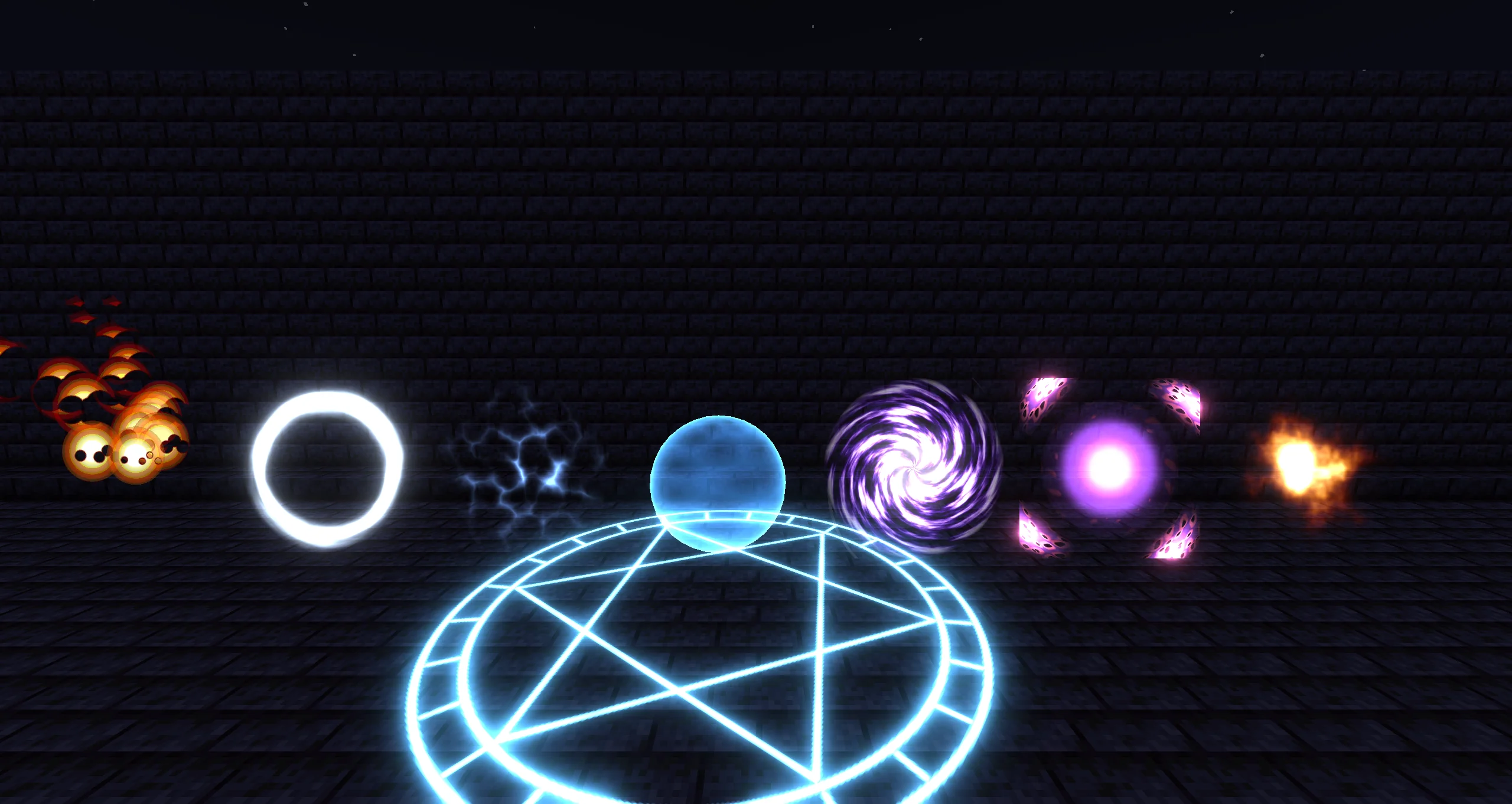
Browse Presets... opens a gallery of 27 presets. Clicking one replaces every setting of the material. Between them, the presets use every module, so they double as examples.
| Category | Presets |
|---|---|
| Basics | Glow (additive), Sparks, Dissolve by lifetime alpha, Slash, Shockwave ring |
| Fire & Smoke | Fire, Smoke (alpha, soft), Explosion smoke, Lit smoke (six-way), Fog ball |
| Magic | Magic circle, Portal vortex, Lightning, Charge orb, Energy trail |
| On the Ground | Ground circle, Scorch mark, Caustics, Scan pulse |
| Surfaces & Meshes | Energy shield, Crystal, Hologram, Debris |
| Screen | Heat haze (screen distortion), Jet exhaust |
| Stylized | Toon fire, Pixel spell |
- Energy trail is for trails and needs GPU instancing on the trail (one click on Fix).
- Scan pulse, Energy shield, Crystal, Hologram and Debris are for meshes, drawn with the Model render mode.
- Charge orb is invisible until its Custom Data stream 0 (x) gets a 0-to-1 curve.
Export as Shader Graph
Since 2.2.8Right-click any Kila Material tile and choose Export as Shader Graph. The dialog asks for Save the shader graph to, Save the material to and a Name. It needs an open project or a writable library folder.
The export writes:
- a shader graph
<name>, with every parameter as an exposed variable; - a Shader Graph Material
<name>_graphthat draws with it and copies Kila's blend, culling and depth as its Own Render State (unless Use Slot State is on).
Clashing names get _1, _2 and so on. The Kila Material is left as it was.
A graph cannot do some things the way Kila does. The closing report lists what was left out:
- Ground Projection and Volume;
- Six-Way lighting (Shading);
- Contact Glow (Depth & Contact);
- Camera Offset;
- Stack on Screen Distortion (exported as a plain screen distortion);
- gradient keys past the eighth;
- modules already left out by the sampler budget.
Continue with Shader Graph: Getting Started.
Geometry
Kila Material draws on every Photon geometry: tile particles with and without GPU instancing, the Model render mode (with tangents and animated glTF models too), particle trails, Trail and Beam emitters, and Ara trails (ribbon and tube).
- Fresnel needs a mesh: a billboard always faces the camera, so it has no grazing angles.
- On the Model render mode, a Normal Map bump needs the renderer's tangent toggle (with GPU instancing). A Height bump needs no tangents.
- Particle-data drivers on trails, beams and Ara trails need GPU instancing; see the Fix row.
Limits
- Not in the thumbnail. Depth & Contact, Screen Distortion, Volume's Scene Clip and Ground Projection read the scene's depth or colour copy, which the thumbnail does not have. The thumbnail also drops the HDR intensity, ignores Camera Offset, and sweeps particle data from 0 to 1 and back every 3 seconds. Check these effects in the scene.
- 12 samplers. The light map, every texture and the scene copies share 12 texture units (at most 9 textures). Slots that sample the same texture the same way share one unit; procedural noise uses none. Above the budget, modules are left out in a fixed order and the status line shows
[X left out: too many textures]. - Stack. With Stack on, Screen Distortion adds its push to the other stacked hazes and bends the finished frame once by the sum, so hazes see each other and every effect drawn before them. Color Fringe does not apply while stacked. Without a shader pack it always works.
- Since 2.2.9 Under a shader pack, Stack works when FX are composited after the pack's passes: Shader pack composite mode set to After the pack's passes, or Auto choosing that path for the pack. Otherwise it falls back to an ordinary, unstacked distortion. In 2.2.8 it always fell back under a shader pack.
- Ground Projection. The material draws without a depth test while the module is on, even with Use Slot State. The quad must cover the decal on screen; at Size 0.5 a billboard covers it from any side. The decal also paints onto entities, does not land on water (water is not in the depth copy), and can leave holes on grass and other plants.