
Shader Graph: Getting Started
Since 2.2.0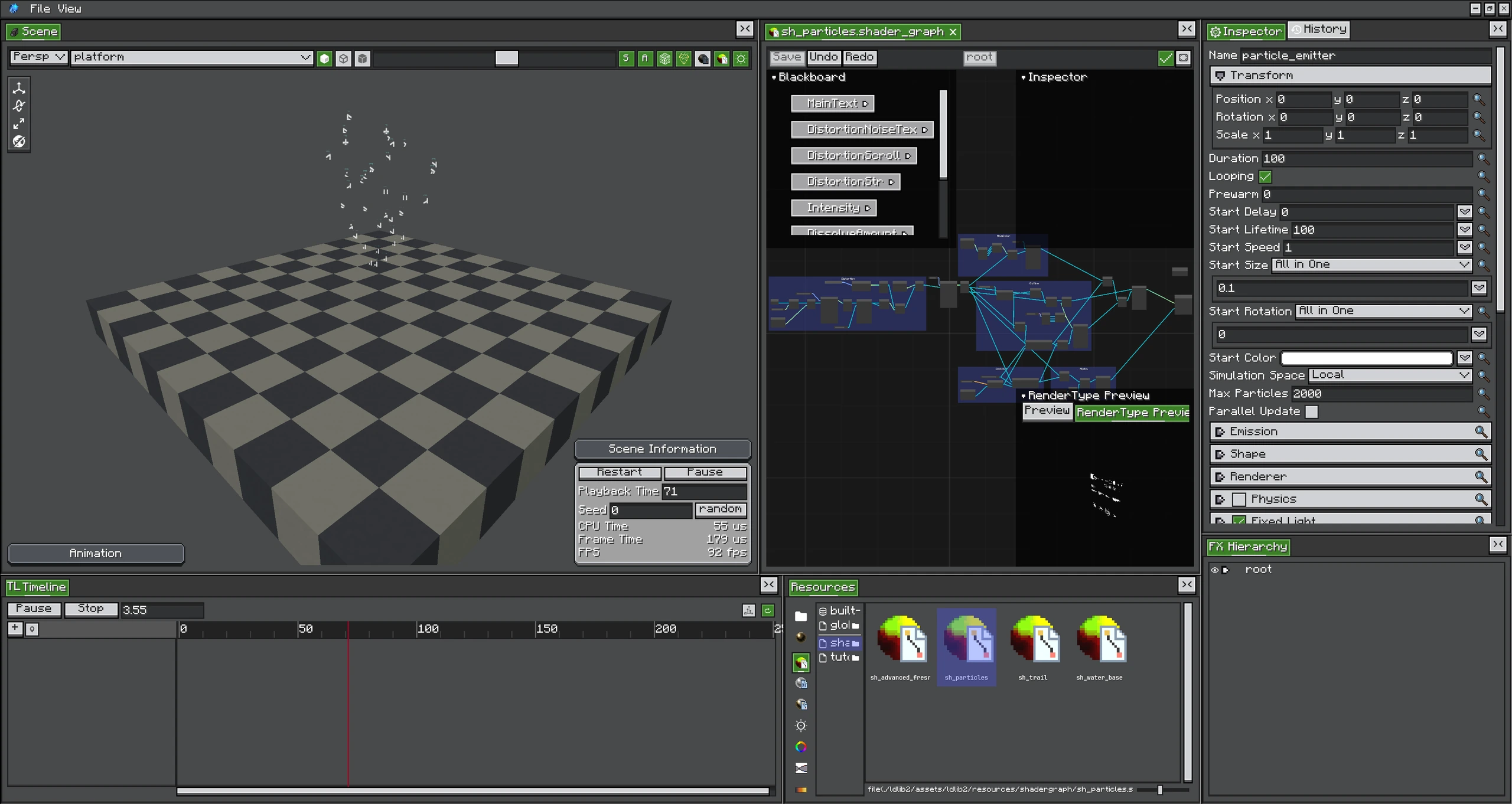
Blackboard parameters sit on the left, connected nodes in the center, and the live particle result in the Scene.
This walkthrough creates a textured, softly fading particle shader and applies it to an emitter.
1. Create the Graph and Material
- In Resources, create a Shader Graph and name it
soft_particle. - Create a Shader Graph Material.
- Select
soft_particleas its graph resource. - Assign the material to a Particle Emitter's renderer.
The graph and material are separate: several materials may reuse one graph with different textures, colors, or scalar parameters.
2. Build the Fragment Result
Add these nodes and connect them:
Particle Data.uv ──> Sample Texture.uv
Texture parameter ─> Sample Texture.texture
Sample Texture.rgb × Color parameter.rgb ─> Base Color
Sample Texture.a   × Color parameter.a   ─> Alpha
Connect the results to the fragment output. Save once: Photon compiles the graph and refreshes the material preview.
3. Add Soft Intersection
Add Depth Fade and multiply its output into Alpha. This compares particle depth with scene depth so a large billboard fades where it crosses blocks instead of showing a hard seam.
Depth Fade is a fragment-stage screen-space operation. Keep the Particle Data UV path independent from screen UV.
4. Expose Parameters
Turn texture, tint, and fade distance into graph parameters. Set their defaults in the graph, then override them per material. Parameter names are serialized; renaming one requires updating materials that referred to the old name.
5. Verify All Render Paths
Test the graph on the renderer you ship:
- alpha and additive blend;
- ordinary tile and GPU-instanced tile;
- world geometry intersections;
- Iris enabled, if your pack supports it;
- HDR/bloom enabled for values above 1.
TIP
When the result is black, first connect a constant color directly to Base Color. Then reconnect texture, particle color, and lighting one at a time. This isolates missing resources from bad graph math.
Save and Package
Save the graph before the material, then save the project. FX Pack export follows resource references; a graph, its material, and referenced textures must all use resolvable resource paths.