
ModularUI
Since 2.1.0This page introduces the core concepts of the LDLib2 UI system. At runtime, LDLib2 uses a class called ModularUI to manage the entire UI tree.ModularUI is responsible for:
- Managing the UI lifecycle
- Handling input events
- Applying styles and stylesheets
- Coordinating rendering
- Synchronizing data between client and server (when used with Menus)
In short, ModularUI is the central controller of a UI instance.
How ModularUI Works
The following diagram shows how ModularUI connects Minecraft systems with the UI tree:
ModularUI APIs
There are two methods to create a ModualrUI:
#!java ModularUI.of(ui)#!java ModularUI.of(ui, player)
To create a simple client-side only UI, the first one is enough.
The second one requires a Player as input, which is NECESSARY if your UI is a menu-based UI and requires data synchronization between client and server.
General APIs
| Method | Description |
|---|---|
shouldCloseOnEsc() | Whether the UI should close when pressing ESC. |
shouldCloseOnKeyInventory() | Whether the UI should close when pressing the Inventory key (default: E). |
getTickCounter() | Returns how many ticks this ModularUI instance has been active. |
getWidget() | Returns the widget instance used by the Minecraft Screen. |
getAllElements() | Returns an unmodifiable list of all UI elements in the UI tree. |
Element Query APIs (By ID)
| Method | Description |
|---|---|
getElementById(String id) | Finds and returns the first UI element with the given ID, or null if not found. |
getElementsById(String id) | Returns all UI elements with the given ID. |
hasElementWithId(String id) | Checks whether at least one element with the given ID exists. |
getElementCountById(String id) | Returns the number of elements with the given ID. |
getAllElementsById() | Returns a copy of the internal mapping from ID to UI elements. |
Element Query APIs (Regex & Pattern)
| Method | Description |
|---|---|
getElementByIdRegex(String pattern) | Finds the first element whose ID matches the given regex pattern. |
getElementsByIdRegex(String pattern) | Finds all elements whose IDs match the given regex pattern. |
getElementByIdPattern(Pattern pattern) | Same as above, but uses a precompiled Pattern for better performance. |
getElementsByIdPattern(Pattern pattern) | Returns all elements matching a precompiled regex pattern. |
Element Query APIs (Partial Matching)
| Method | Description |
|---|---|
getElementsByIdContains(String substring) | Finds all elements whose IDs contain the given substring. |
getElementsByIdStartsWith(String prefix) | Finds all elements whose IDs start with the given prefix. |
getElementsByIdEndsWith(String suffix) | Finds all elements whose IDs end with the given suffix. |
Element Query APIs (By Type)
| Method | Description |
|---|---|
getElementsByType(Class<T> type) | Returns all UI elements of the given type. |
getAllElementsByType() | Returns a copy of the internal mapping from element type to UI elements. |
INFO
All query methods return copies of internal collections when applicable. Returned lists are safe to modify and will not affect the internal UI tree.
Debug your UI
During development, the UI tree may not always behave as expected, and it can be difficult to understand what is going wrong.
LDLib2 provides a Debug Panel, similar to the debug tools in Chrome. The panel lets you inspect the live UI hierarchy, view computed style and layout information, and select elements while the UI is running.
INFO
Since mc26.1Press F12 to open or close the Debug Panel. On 1.21, the shortcut is F3.
After opening the Debug Panel, press F1 to toggle Look Up mode. In Look Up mode, hover an element in the target UI and click it to jump to that UIElement in the Debug Panel's hierarchy and inspector. Press F4 to toggle drawing the UI's layout shapes.
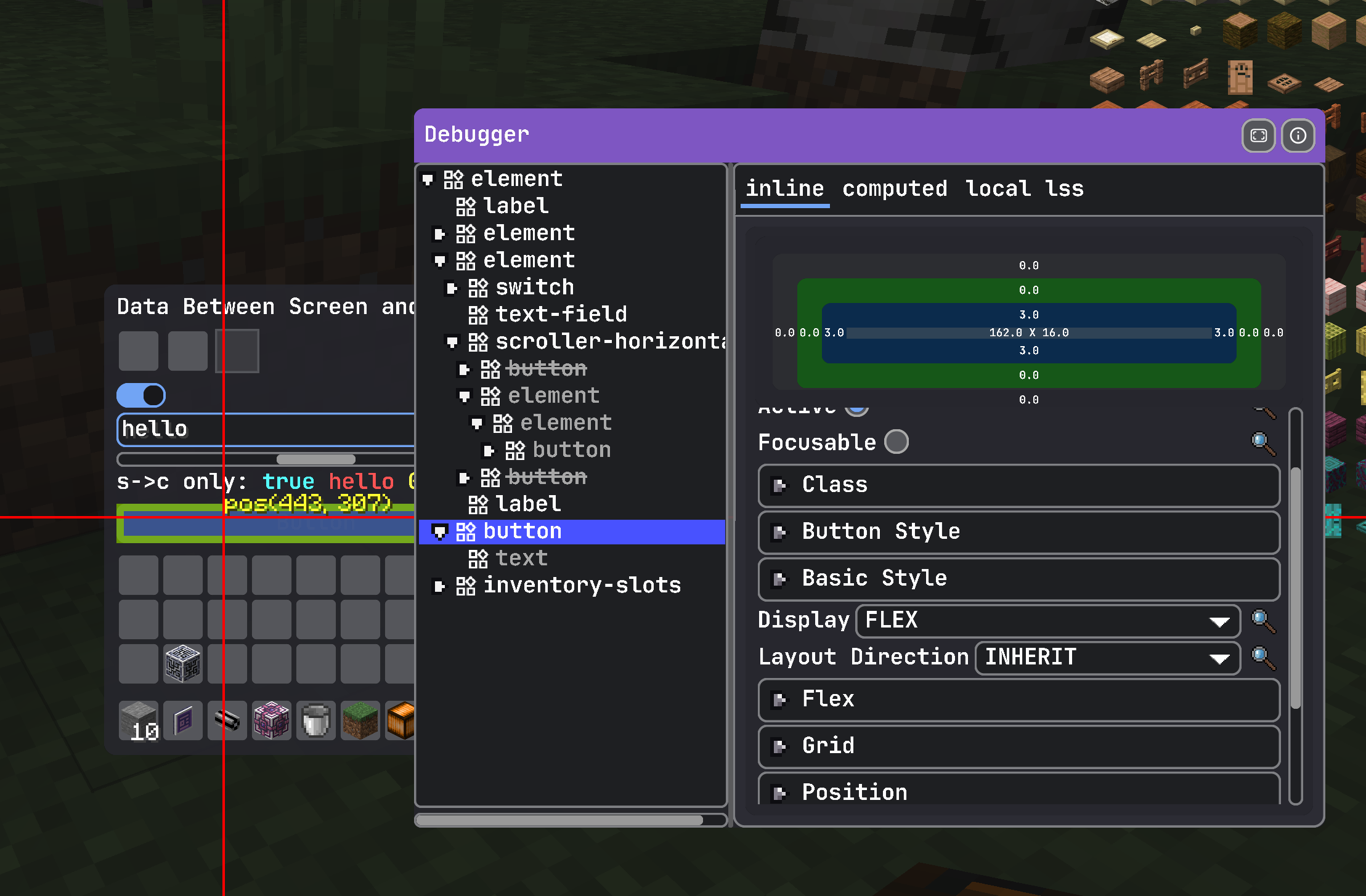
Debugger in Its Own Window
Since 2.2.38The Debug Panel opens layered over the game. The window toggle in its title bar moves it into a desktop window of its own, where it no longer covers the UI you are inspecting. In that window it can be larger than the game window, moved to another monitor, or kept above other windows with its always-on-top toggle. Its size, position, and pin are remembered.
F1 and F4 still work while the pointer is over the inspected UI.
The same switch is available in code while the debugger is open:
modularUI.enableDebugger(true);
modularUI.setDebuggerWindowed(true);    // false moves it back over the game
modularUI.isDebuggerWindowed();
setDebuggerWindowed(true) does nothing if no second window can be opened, for example in native fullscreen. See ModularUIWindow.
Choose What to Inspect
Since 2.2.38When more than one UI is on screen, use the debugger's target picker to choose which one to inspect: the game window's UI, a UI in its own window (such as a floating editor view), or a UI embedded in either. Element outlines are drawn in the window where the inspected UI lives.
Since 2.2.42, UIs drawn inside another UI's element appear in the picker as Outer / Name when they register with ModularUI#embedIn(host, name). Pressing the debug key with the focus inside host opens the debugger on the embedded UI. The UI Editor's simulation uses this.