
Button
Since 2.2.1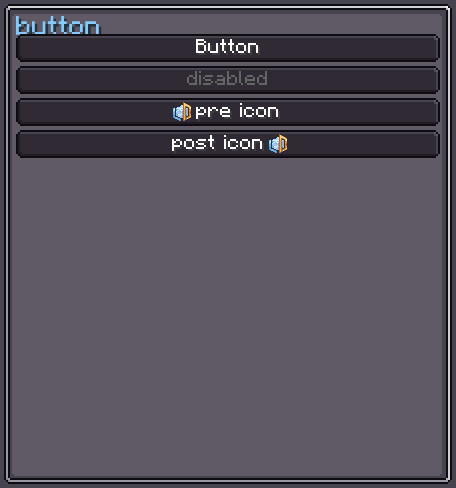
Button is a clickable UI component with a built-in text label, state-reactive textures (normal / hover / pressed), and optional leading or trailing icon decorations.
Internally, Button is a horizontal flex row that owns a single internal TextElement as its label. Because it is a regular UIElement container, you can add extra children alongside the label — most commonly via addPreIcon and addPostIcon.
INFO
Everything documented on UIElement (layout, styles, events, data bindings, etc.) applies here too.
Usage
var button = new Button();
button.setText("my.button.label", true); // translated label
button.setOnClick(event -> {
    // runs on the client when left-clicked
});
button.setOnServerClick(event -> {
    // runs on the server when left-clicked
});
parent.addChild(button);XML
<!-- Simple button with a translated label -->
<button text="my.button.label"/>

<!-- Empty text attribute hides the label (calls noText()) -->
<button text=""/>

<!-- Style the internal TextElement -->
<button text="my.button.label">
    <internal index="0">
        <!-- TextElement attributes / children go here -->
    </internal>
</button>| XML Attribute | Type | Description |
|---|---|---|
text | string | Sets the label text. Pass an empty string to hide the text element. |
Internal Structure
Button contains one internal element owned by the component:
| Index | Type | CSS selector | Description |
|---|---|---|---|
0 | TextElement | button > text:internal | The label text element |
Because the label is internal, it cannot be repositioned or removed through normal child manipulation. You can still target it with LSS selectors:
/* Targets only the button's own text, not any text you add as a child */
button > text:internal {
    font-size: 10;
    text-color: #FFFFFF;
}
Text
setText / noText / enableText
Controls the label text displayed inside the button.
button.setText("my.translation.key", true);  // translated
button.setText("Literal label", false);       // literal
button.noText();                              // hide the label
button.enableText(); // show it againtextStyle
Fluently configure the internal TextElement's text rendering:
button.textStyle(style -> style
    .textColor(0xFFFFFF)
    .fontSize(9)
    .textShadow(true)
);Icon Decorations
Add a texture icon before or after the label. Each icon is sized to match the button height and maintains its aspect ratio.
button.addPreIcon(Sprites.ICON_WRENCH);    // icon before text
button.addPostIcon(Sprites.ICON_WRENCH); // icon after textTo create an icon-only button, call noText() together with addPreIcon:
new Button()
    .noText()
    .addPreIcon(myIcon)
.layout(l -> l.size(14));Button Style
ButtonStyle holds three state-dependent background textures. The active texture changes automatically based on the current interaction state.
INFO
base-background
The texture rendered in the DEFAULT (idle) state, and also when the button is inactive (isActive = false).
Default: Sprites.RECT_RD
button.buttonStyle(style -> style.baseTexture(myTexture));
// or:
button.getButtonStyle().baseTexture(myTexture);INFO
hover-background
The texture rendered in the HOVERED state.
Default: Sprites.RECT_RD_LIGHT
button.buttonStyle(style -> style.hoverTexture(myTexture));INFO
pressed-background
The texture rendered in the PRESSED state (while the mouse button is held down).
Default: Sprites.RECT_RD_DARK
button.buttonStyle(style -> style.pressedTexture(myTexture));Events & Click Handlers
Button provides two convenience setters on top of the standard event system from UIElement:
| Method | Side | Trigger |
|---|---|---|
setOnClick(UIEventListener) | Client | MOUSE_DOWN with left button (button 0) |
setOnServerClick(UIEventListener) | Server | MOUSE_DOWN with left button (button 0) |
button.setOnClick(event -> {
    // called on the client immediately on mouse-down
    System.out.println("clicked on client");
});

button.setOnServerClick(event -> {
    // called on the server when the player clicks
    player.sendSystemMessage(Component.literal("clicked!"));
});INFO
setOnClick fires only for left mouse button clicks (event.button == 0). For other mouse buttons, use addEventListener(UIEvents.MOUSE_DOWN, ...) directly.
State
Button tracks its current visual state automatically:
| State | Condition |
|---|---|
DEFAULT | No interaction |
HOVERED | Mouse is over the button |
PRESSED | Left mouse button held down |
When isActive is false, the button is always rendered with base-background and ignores mouse input.
You can read the current state in Java / Kotlin via button.getState(). You cannot set it externally — it is managed internally by the component's built-in event listeners.
Fields
Fields specific to
Button. See UIElement § Fields for the base fields.
| Name | Type | Access | Description |
|---|---|---|---|
text | TextElement | public final | The internal label element. Access directly to change text style or content. |
buttonStyle | ButtonStyle | private (getter) | Holds the three state textures. |
state | Button.State | private (getter) | Current visual state (DEFAULT / HOVERED / PRESSED). |
Methods
Methods specific to
Button. See UIElement § Methods for the full base API.
| Method | Returns | Description |
|---|---|---|
setText(String, boolean) | Button | Sets label text. true = translatable, false = literal. |
noText() | Button | Hides the internal TextElement. |
enableText() | Button | Shows the internal TextElement again. |
textStyle(Consumer<TextStyle>) | Button | Configures the internal text style fluently. |
addPreIcon(IGuiTexture) | Button | Inserts a square icon element before the text. |
addPostIcon(IGuiTexture) | Button | Appends a square icon element after the text. |
buttonStyle(Consumer<ButtonStyle>) | Button | Configures ButtonStyle fluently. |
getButtonStyle() | ButtonStyle | Returns the ButtonStyle instance directly. |
setOnClick(UIEventListener) | Button | Sets the client-side click handler (replaces previous). |
setOnServerClick(UIEventListener) | Button | Adds a server-side click listener. |
getState() | Button.State | Returns the current interaction state. |